Job Submission
We can then begin to build and submit jobs to the scheduling system through Lightworks. In all code throughout this documentation the following imports will be used, in which the Lightworks SDK is imported using the abbreviation lw and then the remote extension is imported separately. Other extension modules, such as emulator for local simulation or qubit for defining gate-based circuits will be imported as required.
import lightworks as lw
from lightworks import remote
After importing the remote extension the access token needs to be configured using remote.token.set. This will set the token for as long as a particular Python process exists, and so a token will need to re-set at the top of any new scripts.
remote.token.set("INSERT_TOKEN_HERE")
To avoid having to repeatedly copy and paste tokens and leave these hardcoded into scripts (this is particularly not recommended if sharing code with others) it is possible to save tokens using an alias and then reload them using this alias at the start of the code. This is achieved with remote.token.save, which is used below to create a token with name “main_token”.
token_name = "main_token"
remote.token.save(token_name)
Warning
The majority of example notebooks will attempt to load this main token, so it is recommended you complete this step.
This token is stored locally, meaning it can be used between environments. The other benefit to this is that when a token expires then it is possible to overwrite the value with a new token. Meaning scripts can remain functional without requiring updates.
Once a token is saved it is then recovered and automatically assigned using the name “main_token” with remote.token.load.
remote.token.load("main_token")
After a token is configured, it should be possible to proceed with job creation and submission. Below, a sampling experiment is configured with a random unitary matrix which will generate 1,000 samples from the system.
circuit = lw.Unitary(lw.random_unitary(8))
in_state = lw.State([1, 0, 0, 0, 1, 0, 0, 0])
n_samples = 1000

sampler = lw.Sampler(circuit, in_state, n_samples, min_detection = 2)
Note
At this point it would also be possible to locally simulate the job using the sampler task created above. This would be achieved with:
from lightworks import emulator

backend = emulator.Backend("permanent")
results = backend.run(sampler)
Once a job is ready, the backend for execution is then defined - which in this case is the remote QPU backend, and the job can be executed. An optional job name can be provided which will be displayed in the dashboard, it is recommended to use a descriptive name for jobs you may want to revisit at a later date. If a name isn’t provided, it will default to ‘Job’.
qpu = remote.QPU("Artemis")

job = qpu.run(sampler, job_name="Getting Started")
When using the run method, the code will wait until it receives confirmation that compilation was successful before being allowed to resume. This ensures users can be notified if for any reason the compilation is unsuccessful. Alternatively, if you are confident a job will pass compilation then run_async can be used to skip waiting for compilation, allowing for more rapid submission of jobs.
Unlike when using an emulator backend, with remote backends a job object is returned which can be used for managing all aspects of a job until completion. Once created, a number of different attributes can be viewed about a job, such as the ID, status and whether the job is complete or not.
print(job.job_id)
# Output: 1234
print(job.status)
# Output: Scheduled
print(job.complete)
# Output: False
After submission, it is also then possible to find and view a job on the scheduling dashboard using the ID.
Results
The results of a particular job can also be downloaded in Python for plotting or further processing. If we attempt to download results before a job is complete then this will raise an exception, so wait_until_complete can be used to pause execution until a job is finished. After completion, get_result will download and format the results data automatically, creating a QPUSamplingResult, which is effectively a modified Python dictionary.
job.wait_until_complete()
results = job.get_result()
As part of this formatting, any post-selection rules required for the job are applied. If for some reason there is an issue with this then the original data can be recovered with results.raw_data.
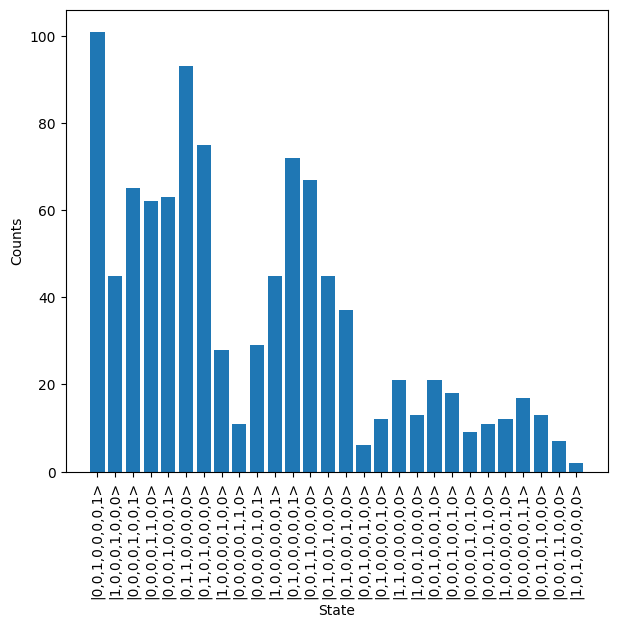
Assuming we are happy with the data, QPUSamplingResult provides a basic plotting method which can be used for quickly visualizing results.
results.plot()
Note
Users need to have a valid configured access token in order to authenticate and retrieve results from the system.
Next steps
Now that you can submit a job to the system, proceed to Examples to see further demonstrations of how the system can be utilised.